🚀 AI Won’t Take Your Job, But Someone Using AI Will. Become That Someone. 💪
Hello Workshop Attendees!
Thank you for joining the event.
Below are complete, step-by-step instructions to implement and execute the high-impact AI use cases we covered during our session.
Personalized AI Job Assessment
Go to website: https://gbdaijobassessment.netlify.app/

Enter your job tile or function, .e.g. instead of "Manager" use "Regional Sales Manager at a manufacturing company", then click "Analyze my role" button.


After AI does it research on your entered job title or function, you will get the below output:

The top section delivers a high-level summary of your role’s AI potential. In this example, the tool evaluated 6 core tasks for the job function and identified 8 hours of weekly time savings.
The breakdown reveals exactly how AI optimizes your workflow:
-
15% Automated: Fully handled by AI systems.
-
25% Augmented: Enhanced through AI-human collaboration.
-
25% Accelerated: Speed up execution using AI tools.
-
35% Human Touchpoints: Tasks that still strictly require human judgment and oversight.
All 6 evaluated tasks are listed below. As shown in the screenshot, the highest-impact opportunity is "Generate quarterly sales pipeline forecasts." You can click on any individual task to unlock step-by-step process details.
Below are details of the "Generate quarterly sales pipeline forecasts":

Explore a detailed breakdown of how AI assists with this specific task. To unlock a step-by-step implementation guide, simply click the 'Click here for your 30-day plan' button.
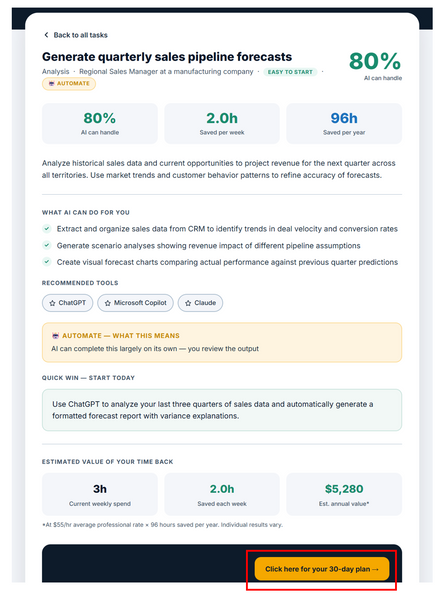
Below pop up screen appears to confirm the 30 day AI action for the specific task you were reviewing. In this example, when you click "Generate my 30-day plan", you will get a plan for how to deploy the "Generate quarterly sales pipeline forecasts":

Below is a structured, 4-week step-by-step plan to implement this AI solution. Click "Copy plan to clipboard" to instantly copy the text and paste it into any application, such as Word, Google Docs, or an email, to save and customize your plan.


Click the "x" on the pop-up screen, to get back to the AI task details.

Click the "Back to all tasks" to return to the AI task summary screen.

Click on any of the other tasks to understand how AI can help with those tasks.

Let's have some fun with AI by showing you how easy it is to use AI to generate videos!

Go to Pictory.ai : https://pictory.ai/

Click on "Get started FREE" or "Get Started Now" and set up a free account.
Once logged in, you will see the below screen:

Let's ask AI to generate a video to explain why the sky is blue. Enter the below prompt in the AI generation area:
Generate a 30-second explainer video that uses simple visuals to show why the sky is blue.

Click "Generate script" and Pictory.ai will produce text for your video. Our "Explain why sky is blue" text below:

Click "Next: video preferences" button.

Modify any video settings you want then click "Generate video" button.
Once processing completes, the below screen appears.
Click the "Right Arrow" button (bottom middle with red border" to preview the AI generated video.
Click "Generate video" button on upper right to download the video.

From idea to video in under 5 minutes! You just used AI to explain why the sky is blue.
Have fun generating your next high-engagement video!